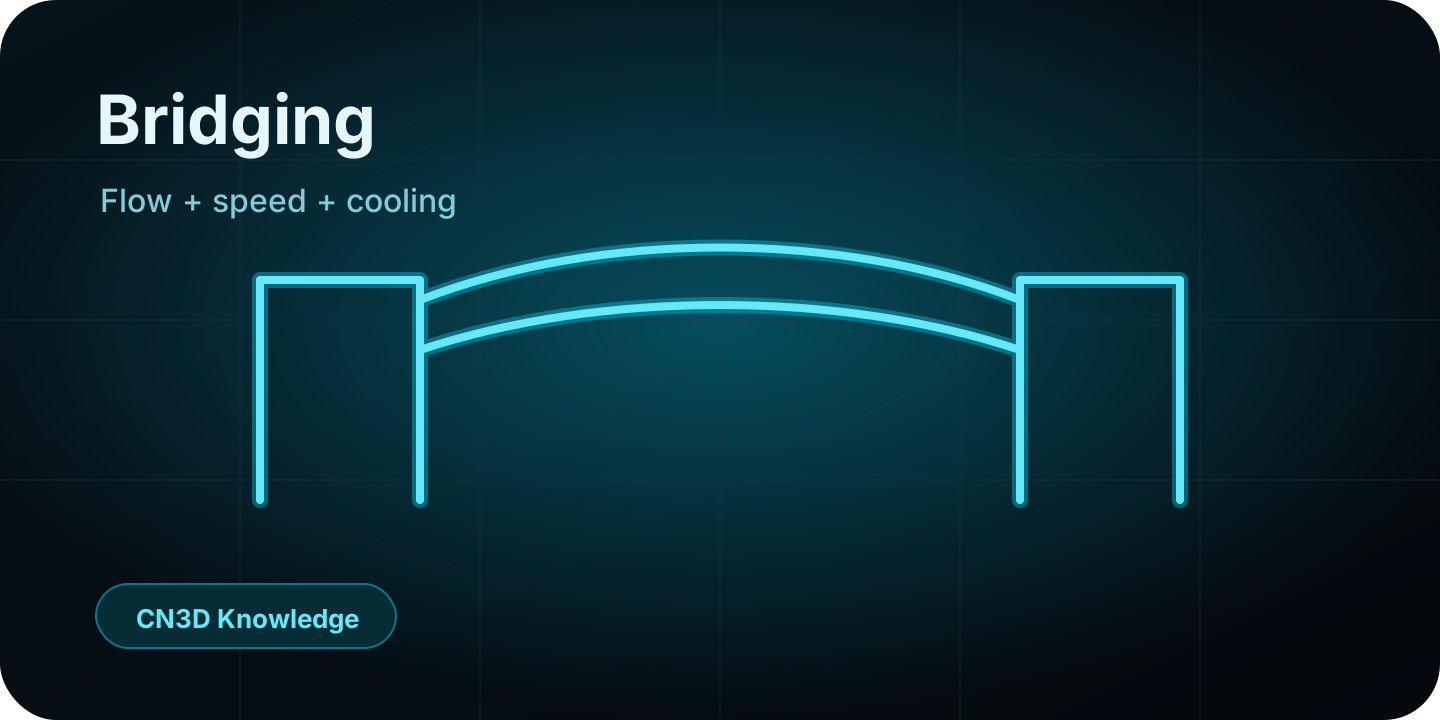
What bridging is
Bridging is the printer’s ability to lay filament between two points with no support underneath. A good bridge can remove the need for supports, reduce material use, shorten print time and leave a cleaner underside.
Why bridges are different from normal lines
Normal extrusion is pressed onto an existing layer, so the line is flattened and has good contact with the surface below. A bridge is extruded in mid-air. The strand remains more circular, has less support and touches neighboring lines less effectively.
Why Bridge Flow helps
Bridge Flow only changes extrusion on bridge regions. Increasing it makes the strands thicker and improves side contact between bridge lines. It compensates for the fact that bridged filament is not flattened against a lower layer.
Tested starting point
In practical tests, Bridge Flow around 1.4–1.6 produced a visible improvement over the default 1.0. A value around 1.5 is a strong starting point, but very high flow can cause sagging because extra material adds weight and takes longer to cool.
Speed matters more than people expect
Once Bridge Flow is close, bridge speed becomes the parameter that turns a good bridge into a great one. Slower bridge moves let strands connect, cool and stabilize before gravity pulls them down. A practical starting point is 10 mm/s for difficult visible bridges.
Cooling and material notes
PLA usually benefits from 100% bridge fan. PETG, ABS and ASA may need less cooling to preserve layer bonding and avoid warping. Do not blindly use the same fan value for every material.
OrcaSlicer settings
Start with Bridge Flow Ratio = 1.5, Bridge Speed = 10 mm/s and Bridge Fan Speed = 100% for PLA. Save these in the filament or process profile and test on a real bridge model before applying them to important parts.
CN3D takeaway
A bridge is not a normal line printed in the air. It needs its own flow, speed and cooling strategy. Bridge Flow compensates for missing flattening, slow speed gives the strand time to stabilize, and cooling locks the shape before it sags.
Utilise cela dans le workflow CN3D
Cet article fait partie du système plus large de calibration et diagnostic. Lis le concept, puis applique-le avec la calculatrice ou le flux de diagnostic.